
Defender for Cloud Apps collects logs from your endpoints, either manually or automatically. With built-in integration, it uses logs from Defender for Endpoint on Windows to monitor network activity, helping to detect Shadow IT on your devices.
Prerequisites
- Ensure that you already have devices in Intune onboarded into Defender for Endpoint.
- Make sure you have met all the following prerequisites.
Enable MDE integration
First thing to do:
- Go to security.microsoft.com
- Open Settings – Endpoints
- Click on Advanced Features
- Enable the Microsoft Defender for Cloud Apps

- Stay on the page: Settings – Endpoints – Advanced Features
- Enable the Custom Network Indicators

The last thing we need to do is to Enforce App Access.
- Go to: Settings – Cloud Apps – Microsoft Defender for Endpoint
- Enable – Enforce App Access

Well done! That’s it.
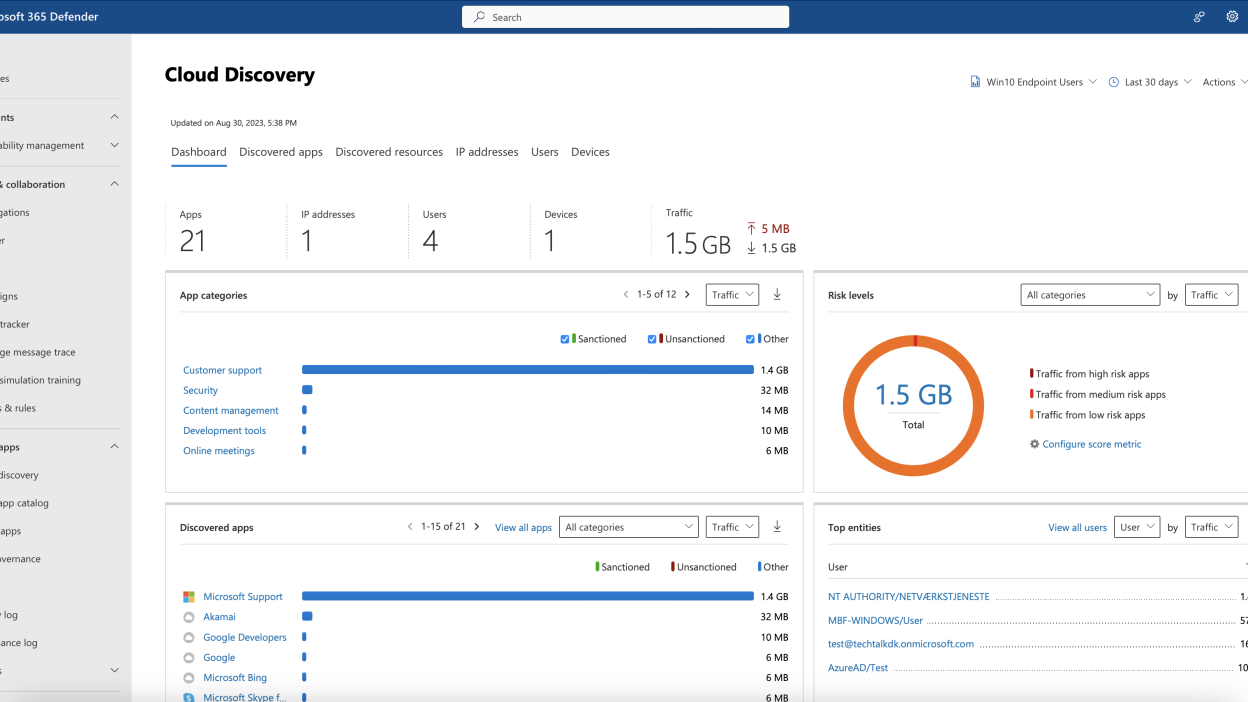
It takes up to two hours after you enable the integration for the data to show up in Cloud Discovery!
After two hours you will be able to see this Cloud Discovery Dashboard.